Showing posts with label Support. Show all posts

Thursday, 2 February 2012

How to perform LO extraction from SAP R/3 to BW system?


**check whether your Datasource is active and in accordance with the requirements “TCode LBWE”**
Step1:-
Transaction code “RSA3”
Check whether the data is updated for the Data Source

Transaction Code “LBWG”
Delete data in setup table by giving the correct application name.
** Check whether the Datsource is already extracting data in to BW. If the Datasource is extracting the data then we need to check the Setup tables (“SE11” Technical name is ‘SETUP’, Extraction Queue (LBWQ), Update tables (SM13), Delta Queue (RSA7) etc. If data exists in any of these TCodes we need to check whether we need these data in BW or not. If we not need the data delete it using “LBWG”.**
Transaction Code “SBIW”
Navigate to “Settings for Application Specific Data Source (PI)” >> ” Logistics” >> ” Managing Extract Structures” >> ”Initialization” >> “Filling the Setup Table” >> “Application Specific Setup of Statistical Data” >> “Execute for application”
[**or one can directly use the TCode OLI^^BW (^^based on your application)**]
In the next screen give name to the run and execute. Now all the available records from R/3 will get updated to Setup tables
** Only Full/Delta initialization loads will move to Setup tables**
Step2:-
Transaction code “RSA3”
Check whether the data got updated.
Transaction code “LBWE”
Check whether the update mode for DataSource is “Unserialized V3”

**Delta Load data flow differs with various update methods, there are three delta update methods
1.      “Queued Delta”:- Data will move to Extraction queue (“LBWQ”) and then run collective update to move the data to Delta Queue (“RSA7”).
2.      “Direct Delta” :- Data will move to RSA7 directly
3.      “Unserialized V3” :- Data will go to Update tables (“SM13”), then will run collective update to move the data to RSA7 **

Step3:-
Login to BW system and initialize the delta process by scheduling the corresponding InfoPackage. All the data that is available in the setup tables are now loaded to data targets. **First time process**
Transaction code “LBWE” (R/3)
Change the update mode for corresponding Data Source to “Direct/Queue delta”. Data will bypass SM13 and directly go to delta queue in RSA7.
** Only Delta update data moves into RSA7/LBWQ **
Transaction code “RSA7”
Queue will be marked in green. Once the new records are updated one can immediately see the records in RSA7.
Go back to BW system and create new infopackage for delta load and schedule the load.
Cross check the data in Data target

Friday, 7 January 2011

Inconsistent ODS/Infocube during data updation


Back in 2007 I faced an issue with inconsistent ODS object. We were not able to activate some queue requests, And considering data reloading was a herculean task.
The error message was similar to one below;

“DSO XXX inconsistent; request REQU_XXX only exists in RSODSACTREQ”
“ODS Activation failed with status :5”

We faced a similar scenario today, that’s why I thought about noting this down. You will get ample material in internet explaining about this.

One solution is to delete the request from request queue (manage screen) and also from the table RSODSACTREQ (Activation table of M-requests to change-log requests) and try to activate the data in ODS.
Or
Use Transaction RSRV (Analysis and repair for BI objects) -> All Elementary Tests-> ODS Objects -> Check the Status of the Generated Program of a Data Store Object -> give  ODS name->Execute.
 If it fails, then click Correct Error Tab & execute again. Check once more and activate ODS object

Thursday, 1 July 2010

Infopackage dynamic selection routine

This will explain , how to give dynamic selection for periodic loading using infopackages.
After creating an infopackage go to "Data Selection" tab. Give Type - 6 Abap Routine for the required selection criteria. Here I am loading the data with selection "Previous Month" (0calmonth).

Give a description and click enter. It will move to the Scheduler routine screen.


Enter the code as below (highlighted).

*$*$ begin of routine - insert your code only below this line *-*
data: l_idx like sy-tabix.
read table l_t_range with key
fieldname = 'CALMONTH'.
l_idx = sy-tabix.
*....
l_t_range-low = sy-datum(6) - 1.
l_t_range-high = sy-datum(6) - 1.
modify l_t_range index l_idx.

p_subrc = 0.

*$*$ end of routine - insert your code only before this line *-*

Save this.

This will make the month range to previous month . "l_t_range" table is of type structure RSSDLRANGE (contains Sign, Option, Low, High). We need to populate these fields to pass range dynamically.

Thursday, 7 May 2009

How to delete baseline forecast in APO DP Planning book when Macro is not working fine

This is not a standard procedure. 
Its simple by copying a keyfigure which has zero values in future (like Base history) to the Baseline forecast keyfigure. The transaction used is "/sapapo/tscopy".
For target and source give the same planning area and version. Select the period that need to be deleted. Select the keyfigure assignment and give the target and source description.
Dont check propose keyfigures. Execute and check the log. Now go b
ack to your planning book. Its clean :))))


Tuesday, 12 February 2008

Restarting a process chain at a failed step/request

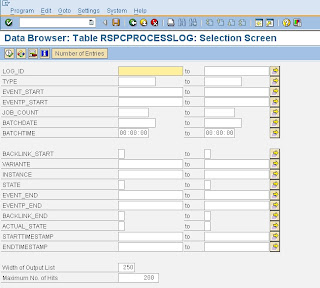
Sometimes, it doesn't help to just set a request to green status in order to run the process chain from that failed step on to the end.You need to set the failed request/step to green in the database as well as you need to raise the event that will force the process chain to run to the end from the next request/step on. Therefore you need to open the messages of a failed step by right clicking on it and selecting 'display messages'.In the opened pop-up, click on the tab 'Chain'. In a parallel session goto transaction se16 for table rspcprocesslog and display the entries with the following selections:


1. copy the variant from the popup to the variante of table rspcprocesslog


2. copy the instance from the popup to the instance of table rspcprocesslog


3. copy the start date from the popup to the batchdate of table rspcprocesslog Press F8 to display the entries of table rspcprocesslog.


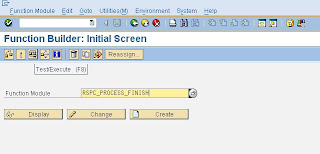
Now open another session and goto transaction se37. Enter RSPC_PROCESS_FINISH as the name of the function module and run the fm in test mode.
Now copy the entries of table rspcprocesslog to the input parameters of the function module like described as follows:
1. rspcprocesslog-log_id -> i_logid
2. rspcprocesslog-type -> i_type
3. rspcprocesslog-variante -> i_variant
4. rspcprocesslog-instance -> i_instance
5. enter 'G' for parameter i_state (sets the status to green).
Now press F8 to run the fm. Now the actual process will be set to green and the following process in the chain will be started and the chain can run to the end.
Of course you can also set the state of a specific step in the chain to any other possible value like 'R' = ended with errors, 'F' = finished, 'X' = cancelled ....

orginal link "Siegfried Szameitat"


Thursday, 27 December 2007

"Caller 70 missing" Error


This means that the processing time for loading is too large. Usually due to to large amount of data, Start Routine Looping for infinite time, Erraneous data etc. If all records from source system has arrived into PSA. Just right click on the data packet that was not updated and select "Manual Update".

Wednesday, 17 October 2007

Transporting Reports from Development to Testing System

This is a simple procedure, U need this often. Go through the steps.
1> Create Your BEx report (Queries, Workbooks etc)
2> Goto RSA1 (Admin Workbench) and click on the "Transport Connection"
3> Select "Object Type", Goto "Query Element" and click on "Query"
4> Select " Select Objects" which gives you infoareas where you need to find your query
5> Give your query name to search, and transfer that, it will take a few minutes and give you the query and all associated objects on the "Collected Objects"
6> In the same way select Your "Work book" and collect it
7> Check the "Transport" Column and Click on the "Truck" on the top
(Here either One could click the "BEx Transport" button in the top and transport it confining in a package. For example for the APO queries the package will be something named Z_MULT_CUBE*. This may differ with the kind of implimentation)
8> It will ask for request. Create your request and click "Continue"
9> For Releasing the request. Goto SE09. Release all tasks under your request(if any truck icon in menu bar)
10> Then release the "Transport Request"
11> Open Quality system. Goto "STMS" in Quality and check the import queue.
12> You should see your request here. Just click on this import this to Quality.

Friday, 5 October 2007

Datasource replication


Process chains might fail if the data source is not in sync between the source and the BW system. In such a case, go to the 'Source Systems' in transaction RSA1, find the datasource, right click and select 'Replicate Datasources'. Once this is done, the transfer structure needs to be activated as well. To do this in production, run the report RS_TRANSTRU_ACTIVATE_ALL with the source system name and the infosource name. This will activate the transfer structure.NOTE: For master data using direct upload the infosource name is the name of the info object itself.

Master data issues

Sometimes the issue is related to the master data in R/3 or APO and hence the process chain fails. In such scenarios the data needs to be corrected in the Source System and the data needs to be reloaded. Eg: The source system delivers double records for a particular info object. In such a case the data in the souce system has to be corrected and the data reloaded.

Outbound Queue issues

Sometimes it is found that there are outbound queue SMQ1 has not been cleared for a long time. The reason could be that a particular info package has not run. In such situations analysis needs to be done as to why the info package is not run and it has to be scheduled accordingly. We must run the corresponding infopackage to clear the qRFC data that support the BW delta queue. The queue listed here is the delta queue in BW. It gets cleared automatically when the data is pulled successfully into BW. Some of the queues are cleared on a daily basis and some on a weekly basis. Based on the frequency of the pull the data is updated in the queue.

Transactional RFC errors

The transaction RFC errors can be seen via the transaction SM58. Usually, there is a short dump accompanying tRFC errors. The details of the error message can be found in the dump and corrective actions taken accordingly.

To reload the data

There are frequent requests from users to reload data for eg: SNP data into BW because the previously loaded data was incorrect. We cannot run the process chain directly because the chain is already scheduled in Production and restarting it directly would delete the scheduling. Hence in such a scenario the process chain can be restarted by copying the process chain job. The steps are as follows:

1. Right click on the process chain and select 'Display all jobs'.

2. Select the 'Released' job and from the 'Job' menu item select 'Copy'.

3. Rename the job and click on 'Copy'. This creates a copy of the process chain job.

4. Next go to sm37 transaction and find the newly created job. This job has the status 'Scheduled' and it can be released. Once released it starts the process chain and the regular scheduling of the chain is not disturbed.

Wednesday, 3 October 2007

Missing Index: Process chain Error

Sometimes there might be missing indexes in the PW1 environment. This can be checked in transaction DBO2 (Missing Indexes). Sometimes it could be such that the DB statistics were run at a time while the cubes are being loaded and hence the indexes are missing. Hence the first step for such issues is to refresh the data base statistics as shown in the figure. Doing this, updates the database statistics. If this does not solve the issue, go the infocube 'Manage', Performance tab and select 'Repair Indexes (Immediately)'. After this the database statistics need to be updated again via DBO2.If the table for which the index is missing not an infocube, in such a case the index can be created as shown in the first diagram. Highlight the index and select 'Create in DB'.


PSA Maintenance not possible: Process chain error

If there is no PSA, the other option would be to change the data in the new data table of the ODS Object. This can be done in debug mode in the production.
Step 1: Goto the ODS object manage by right clicking on the ODS object


Step 2: In the contents tab, select the ‘New Data’ table. This will contain the request which have not been activated in the ODS object because of invalid characters.


Step 3: Find the record with invalid characters in this table. Select the record by checking the check box against it, put a /h in the execution bar and click on . You will see the message ‘Debugging switched on’ appear at the status bar.


Step 4: After you see the debug message in the status bar, click on the display button

Step 5: You will see the debugging screen shown below.


Step 6: Now click on ‘F7’ to exit from the subroutine. You will see the below shown screen.


Step 7: At this point, double click on ‘code’ and you will see it below with its current value which is ‘SHOW’.

Step 8: Now I change the value ‘SHOW’ to ‘EDIT’ and save the changes by clicking on the change button shown below.


Step 8: After doing the above, press ‘F8’ to exit out of debugging. Now you will see that the record is editable.
Step 10: Correct the invalid character and save the record. This kind of changes can be done by selecting many records as well.
Step 11: After doing the changes in the New data table, activate the request and it should go through successfully.

PSA maintanence

Sometimes the inclusion of the character is not possible in RSKC because of byte length differences. Here the option is to correct the invalid character in BW and fix it in the source system as well. If the data is being loaded via a PSA, in such a scenario the data can be corrected in the PSA and then reloaded into the ODS object. To edit the data in the PSA first delete the data from the data target and only then will the data be available for editing in PSA. The editing can be done by selecting many records or just by selecting a single record. Save the changed records and then reconstruct the data from the reconstruct tab in the ODS.

ODS activation fails: Process chain error


If ODS activation fails because of invalid characters the first step would be to try to insert the new character in the allowed character set in BW. The invalid character can be seen in the error message of the ODS activation. Goto transaction RSKC and insert the character at the end and click on execute. After this is done activate the ODS object and it should go through sucessfully.